Download Apps &
Complete Setup Guide

Everything you need to install and configure KasTV IPTV on any device. Download links, Downloader codes, and step-by-step tutorials all in one place!

Android TV / Fire TV iOS (iPhone/iPad) Smart TV Android Mobile Windows/Mac

Android TV / Fire TV Setup

The easiest way to install IPTV on your Android TV or Fire TV Stick. Choose your favorite player and get streaming!

📱 Choose Your IPTV Player
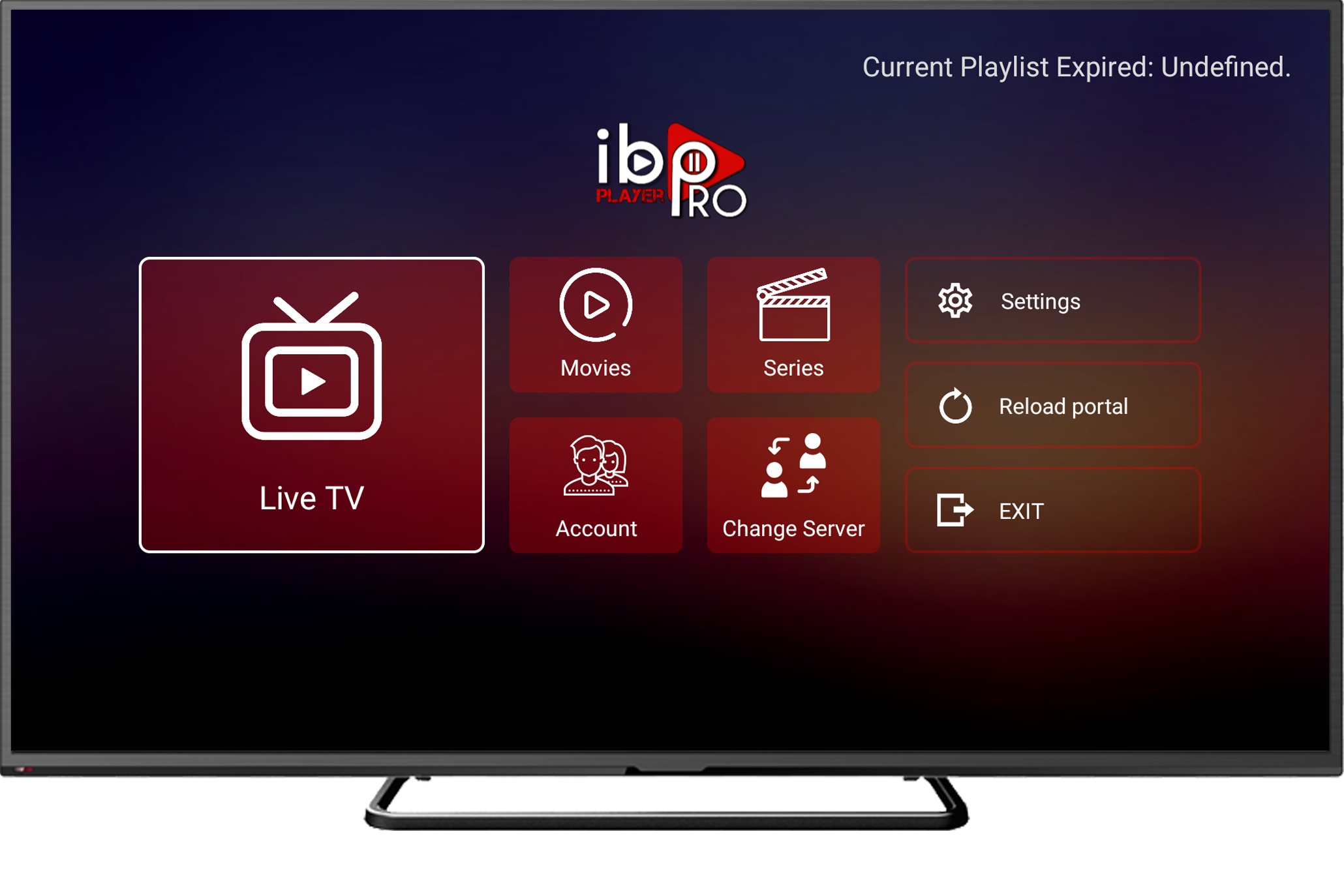
IBO Player Pro
IBO Player Pro

Most popular choice with clean interface and EPG support.
Popular EPG Catch-Up
Downloader Code: 493794
📥 Download APK
TiviMate IPTV
TiviMate IPTV

Premium player with fast channel switching and 4K support.

4K Fast Clean UI
Downloader Code: 704799
📥 Download APK
XCIPTV Player
XCIPTV Player

Advanced features with parental controls and favorites.

Advanced Parental Control
Downloader Code: 935281
📥 Download APK
IPTV Smarters Pro
IPTV Smarters Pro

Multi-format support with recording and catch-up features.

Recording Multi-Screen
Downloader Code: 493152
📥 Download APK

🛠️ Step-by-Step Installation

1

Install Downloader App

First, install the Downloader app to easily get your IPTV player.

  1. On your Android TV/Fire TV, open the Google Play Store or Amazon Appstore
  2. Search for "Downloader" by AFTVnews
  3. Install and open the app
  4. Grant any permissions it requests
2

Enter Downloader Code

Use one of the codes above to download your chosen player.

  1. In the Downloader app, click on the URL/Code field
  2. Enter the Downloader code from your chosen player above (just the numbers)
  3. Click Go and wait for the download to complete
  4. Click Install when prompted
  5. Click Done after installation
💡 Quick Tip:

You can copy the code by clicking the "Copy" button above, then paste it in Downloader for faster installation!

3

Configure IPTV Player

Now add your KasTV credentials to start streaming.

  1. Open the installed IPTV player from your apps
  2. Look for "Add Playlist", "Login", or "Activation"
  3. Choose "Login with Xtreme Codes" or "Portal URL"
  4. Enter your KasTV credentials (provided in your activation email):
    • Portal URL: Your server address
    • Username: Your unique username
    • Password: Your password
  5. Click Login or Add
  6. Wait 1-2 minutes for channels to load
📧 Don't Have Credentials Yet?

Your credentials are sent automatically after payment. Check your email or contact us on WhatsApp for instant help!

4

Optimize Playback Settings

Get the best streaming quality with these settings:

  • Decoder: Try HW (Hardware) first for best performance
  • Buffer Size: Set to 3-5 seconds for smooth playback
  • Video Quality: Auto-select or force 1080p/4K if supported
  • Connection: Use Ethernet cable or 5GHz Wi-Fi for stability
  • Channel Groups: Organize channels by favorites for quick access

iOS Setup

Install IPTV directly from the App Store on your iPhone or iPad.

IPTV Smarters Pro
IPTV Smarters Pro

Most popular iOS IPTV player with user-friendly interface and full feature support.

Popular EPG AirPlay
📱 Download from App Store
GSE Smart IPTV
GSE Smart IPTV

Advanced IPTV player with Chromecast support and cloud sync features.

Advanced Chromecast Cloud Sync
📱 Download from App Store

🛠️ iOS Installation Steps

1

Download from App Store

  1. Open the App Store on your iPhone or iPad
  2. Search for "IPTV Smarters Player" or "GSE Smart IPTV"
  3. Tap Get and authenticate with Face ID/Touch ID/Password
  4. Wait for the app to download and install
2

Add Your KasTV Account

  1. Open the installed IPTV app
  2. Tap "Add New User" or the "+" button
  3. Select "Login with Xtreme Codes API"
  4. Enter your KasTV credentials:
    • Server URL: Your portal URL
    • Username: Your username
    • Password: Your password
  5. Tap Add User or Login
  6. Wait for channels to load
3

Enjoy Your Content

  • Browse channels by category or use the search function
  • Long-press any channel to add it to favorites
  • Enable notifications for program reminders
  • Use AirPlay to stream to your Apple TV
  • Create custom playlists for quick access

Smart TV Setup

Install IPTV players on Samsung, LG, Sony, and other Smart TVs.

1

Find IPTV App in Your TV Store

Different TV brands have different app stores:

  • LG Smart TV: Open LG Content Store
  • Samsung Smart TV: Open Samsung Apps
  • Sony/Android TV: Open Google Play Store
  • Other Brands: Look for the TV's app marketplace

Search for one of these apps:

  • IBO Player (Recommended - most TV-friendly)
  • OTT Navigator
  • XCIPTV
2

Install and Launch

  1. Select your chosen app from search results
  2. Click Install or Download
  3. Wait for installation to complete
  4. Open the app from your TV's app list
3

Activate with KasTV Credentials

  1. In the app, navigate to "Settings" or "Activation"
  2. Choose "Portal" or "Xtreme Codes" login
  3. Use your TV remote to enter your KasTV credentials carefully
  4. Save the settings
  5. Restart the app if prompted
  6. Channels should load within 1-2 minutes
🎮 Remote Control Tip:

Use your TV remote's arrow keys to navigate fields. Some apps support voice input if your remote has a microphone!

4

Optimize for Best Performance

  • Connection: Use Ethernet cable for most stable streaming
  • Quality: Set video quality to Auto or 4K if your TV supports it
  • EPG: Enable Electronic Program Guide for TV schedules
  • Buffer: Adjust buffer size if experiencing lag (try 3-5 seconds)
  • Favorites: Create channel groups for easier navigation with remote

Android Mobile Setup

Install IPTV on your Android phone or tablet for streaming on the go.

1

Enable Unknown Sources

Allow installation from sources other than Google Play:

  1. Open Settings on your Android device
  2. Go to Security or Privacy
  3. Find "Install unknown apps" or "Unknown sources"
  4. Enable it for your browser or file manager
2

Download IPTV Player APK

Choose one of these mobile-optimized players:

  • IPTV Smarters Pro - Best for mobile devices
  • GSE Smart IPTV - Chromecast support
  • TiviMate - Premium features
  1. Download the APK file from above (scroll to Android TV section)
  2. Tap the downloaded APK in your Downloads folder
  3. Tap Install
  4. Wait for installation to complete
  5. Tap Open
3

Configure Your Account

  1. Open the installed app
  2. Tap "Add New User" or "+"
  3. Select "Login with Xtreme Codes API"
  4. Enter your KasTV credentials
  5. Tap Login or Save
  6. Wait for channels to load

Windows / Mac Setup

Watch IPTV on your computer using VLC Media Player or dedicated apps.

1

Download VLC Media Player

VLC is the easiest way to watch IPTV on PC/Mac:

  1. Visit videolan.org/vlc
  2. Click Download VLC for your operating system
  3. Run the installer and follow the setup wizard
  4. Launch VLC after installation
2

Add Your KasTV Playlist

  1. Open VLC Media Player
  2. Go to MediaOpen Network Stream (or press Ctrl+N / Cmd+N)
  3. Paste your M3U playlist URL (provided in your activation email)
  4. Click Play
  5. Your channels will load in the playlist sidebar
💻 Better Experience:

For a TV-like interface, download "IPTV Smarters" for Windows or "IPTV" app for Mac from their official websites!

3

Useful Keyboard Shortcuts

  • Spacebar: Play/Pause
  • F: Toggle fullscreen
  • N: Next channel
  • P: Previous channel
  • Ctrl+L / Cmd+L: Show/hide playlist
  • ↑↓: Volume up/down

Common Issues & Solutions

🔄 Buffering / Freezing

  • Switch from Wi-Fi to Ethernet cable
  • Close other apps/devices using your internet
  • Lower video quality to 720p temporarily
  • Try different decoder (HW → HW+ → SW)
  • Increase buffer size to 5-7 seconds
  • Test internet speed (need 15+ Mbps for HD)

❌ Channels Not Loading

  • Double-check your credentials are typed correctly
  • Verify your subscription is active (check email)
  • Try the alternative server URLs in your dashboard
  • Restart the app completely
  • Clear app cache in settings
  • Contact us on WhatsApp for activation status

🎥 Poor Video Quality

  • Check if your device supports 4K/HD playback
  • Ensure internet is 25+ Mbps for 4K streaming
  • Change video quality setting to "Auto" or "High"
  • Update your IPTV player to latest version
  • Try different channels to isolate the issue
  • Switch to hardware decoder if available

💥 App Crashes

  • Update to the latest app version
  • Clear app cache and data in settings
  • Restart your device completely
  • Try a different IPTV player
  • Ensure device has 1GB+ free storage
  • Check for device software updates

Still Need Help?

Our support team is available 24/7 to help you get streaming!